Unity Express is a popular add-on for Cisco Unified Communication Manager Express (CallManager Express) and Cisco Unified Communication Manager (CUCM), adding advanced auto attendant functionality with complex menu support through Unity Express voice scripts, user voice mail and advanced notification methods such as emailing voice messages directly to users, calling users to notify them about their new voice messages and much more.
Users interested can also visit our Cisco VoIP/CCME - CallManager Section where they'll find more articles covering Cisco VoIP, CallManager, CallManager Express and Unity Express.
Cisco Unity Express Hardware Platforms
Unity Express is offered on a variety of hardware platforms supporting the Cisco 2800, 3800, 2900 and 3900 series routers. Depending on the router and capacity required, Unity Express is available as a card that fits in an Advanced Integration Module (AIM) slot (2800, 3800 series), Internal Service Module (ISM) (2900, 3900 series), Network Module (NM-CUE-EC) for 3700, 2800 & 3800 series that support network modules, Enhanced Network Module (NME) for all 3700, 2800, 3800, and 2900, 3900 series routers supporting network modules and finally the newer Service Module (SM) supported only on ISRG2 routers (2900 and 3900 series), again that are able to accept network modules.
We were lucky to get our hands on two different Unity Express modules, the ISM-SRE-300-K9 installed on a Cisco 2911 CCME, and the larger SM-SRE-700-K9 installed into a Cisco 3945 CCME.
The following table shows the technical specifications of both ISM-SRE-300-K9 & SM-SRE-700-K9:
|
Feature |
Cisco SRE 300 ISM |
Cisco SRE 700 SM |
|
Form Factor |
Internal Service Module (ISM) |
Service Module (SM) |
|
CPU |
Intel Processor 1.06Ghz |
Intel Core 2 Solo, 1.86Ghz |
|
DRAM |
512MB |
4GB |
|
Compact Flash Memory |
4GB internal USB Flash-memory module |
2GB internal USB flash-memory module |
|
Hard Disk |
None |
One 500GB SATA 5400rpm HDD |
|
Mailboxes Supported |
100 |
500 |
|
Concurrent Voicemail and Automated-Attendant Ports and Sessions |
10 |
32 |
Meet The ISM-SRE-300-K9
While the configuration procedure for both modules is identical, physically there are many differences that cannot be overlooked.
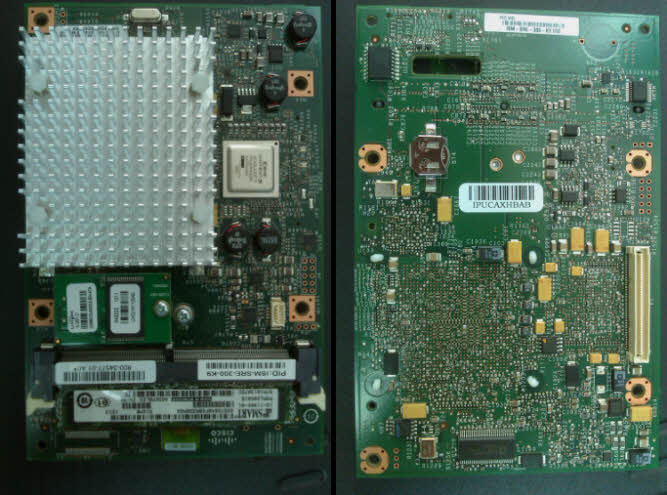
The ISM-SRE-300 is the smallest internal module available for the newer ISRG2 routers but certainly does not hold back in performance or capabilities. With a whopping 100 mailbox support and up to 10 concurrent voice ports, its capable to deliver enterprise class services.
As an ISM module, it is installed by opening the router’s lid and connecting it to the special ISM port located on the back left area of the main board or front right area, depending on which way the router is facing. On our Cisco 2911 ISR-G2 CallManager Express router, we've marked the ISM connector yellow in the picture taken below:
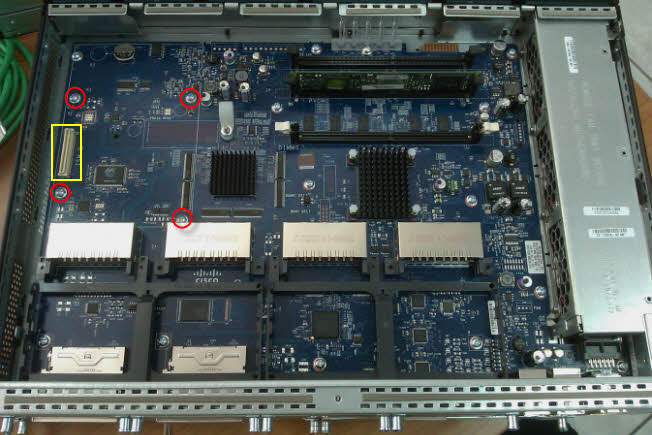
In the picture above, we see our Cisco 2911 router, open and ready to accept the ISM module. Note that there is only one ISM connector on the main board, which means you can only install one ISM module.
With every ISM module, Cisco provides 4 hex metal M-F standoffs to be placed in the area circled in red. To install the hex metal M-F standoffs, it is necessary to remove the factory screws, and replace them with the hex metal M-F standoffs. Finally, after the ISM-SRE-300 is in place and connected, use the screws to tighten the board against the hex metal standoffs.
This is what the 2911 router looks like inside, after the ISM-SRE-300 is firmly placed in its position and secured with the necessary screws:
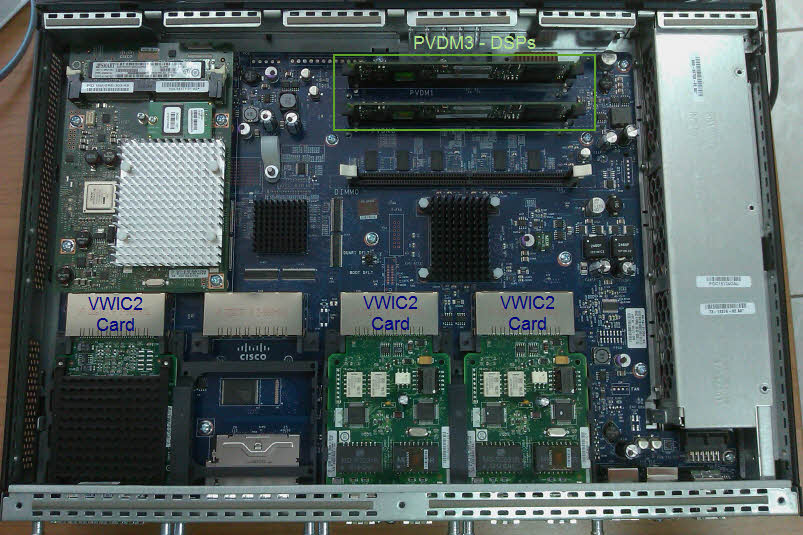
We’ve also add a few more items, including a High-Density Packet Voice Video Digital Signal Processor Module (PVDM3-16) and three VIC2 cards used to connect to the public switching network (ISDN and PSTN Lines).
Meet The SM-SRE-700-K9
The SM-SRE-700-K9 is the big SM brother targeted for larger enterprises with support up to 500 mail boxes and expandable to 32 concurrent voice ports. Looking at the picture we took during the installation, it is evident we are talking about a whole server on a single board – the only thing missing is a VGA card! The SM-SRE-700-K9 is capable of running VMware vSphere Hypervisor and host Windows machines running one or more Windows Server operating system!
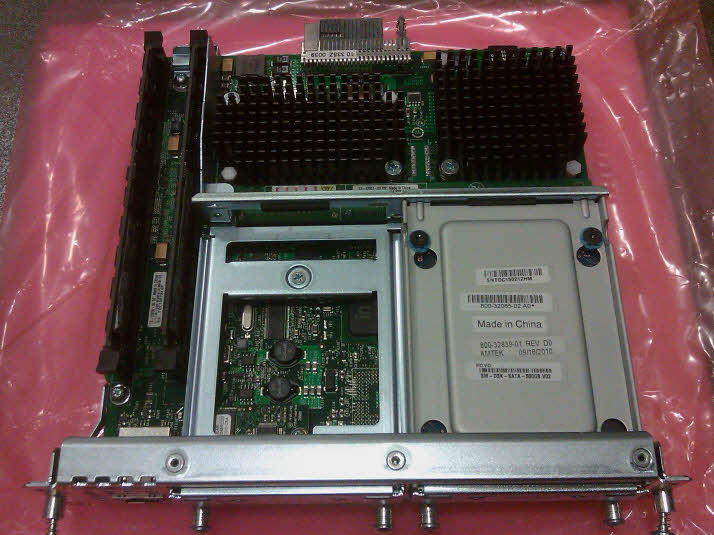
The system’s hard disk drive is visible on the lower right area and next to it there is an empty slot ready to accept a second disk drive. On the left is the system’s DRAM – 4 GB in total (2x2GB) and we suspect the central processor is located to the right side of the DRAM memory as there’s a sticker right behind the empty hdd slot warning that the heat sink gets hot.
Installing the SM-SRE-700-K9 is a lot simpler as it does not require opening the router to access its mainboard. Simply locate an empty SM slot, remove the blank plate and insert the SM-SRE-700-K9 inside:
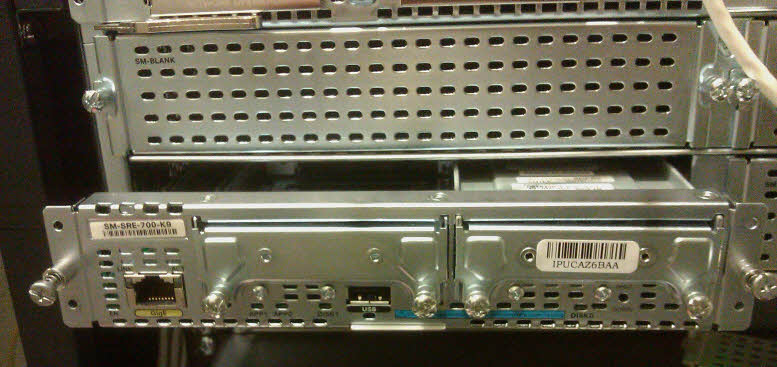
Once neatly tucked in its place, we are ready to power up the Cisco 3945 router and being the setup.
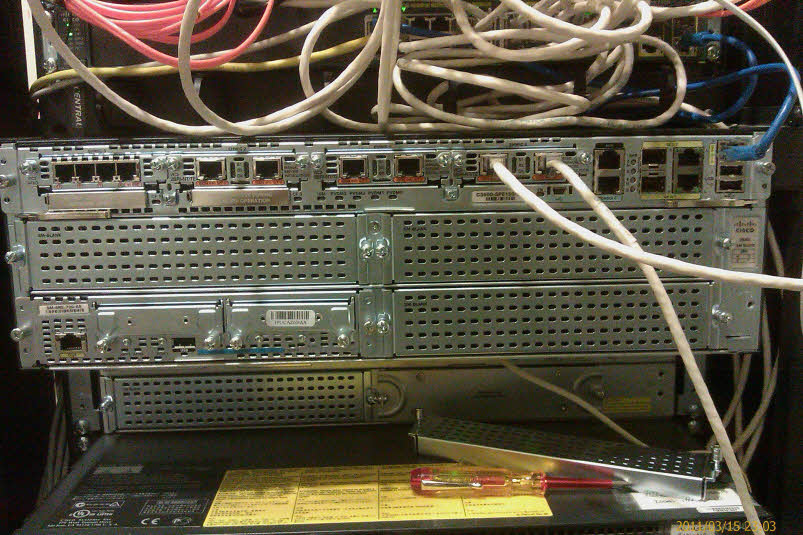
Next: The second part of our Unity Express installation guide. Part-2 covers the initial configuration of CallManager Express, necessary to establish communication with the Unity Express module, IP configuration, initilization of the setup procedure plus much more.
The article provides step-by-step instructions with all necessary details and as always includes screenshots of the setup process. Click here to read Part-2 of our Unity Express Setup/Installation.
Enterprise-Class Cloud & Network Monitoring

Threat Traffic Analysis

Wi-Fi Key Generator
IT Infrastructure Monitoring

Follow Firewall.cx
Recommended Downloads
Cisco Password Crack
Decrypt Cisco Type-7 Passwords on the fly!
Automated Patching Solution

Firewall Analyzer