This article covers the installation of Cisco's CallManager Express on Cisco routers. Here you'll find the necessary installation commands, files to download, router's HTTP server configuration commands along side with the commands to activate the web CME interface and access it via a web browser.
Installing the CallManager Express GUI Files
As mentioned in our previous article CallManager Express GUI Software Installation & Configuration - Part 1, we'll be installing the file containing the basic CallManager GUI files. This is a common practice over the full version as free space on the system's flash is often a problem.
The 40MB .tar file (cme-basic-7.1.0.1.tar) should just about it on a system with a 128MB flash that already contains the Cisco IOS on it. While this file can be viewed using Winzip, it is intended to be extracted directly on to your CallManager platform using the CLI interface.
Using the necessary commands, the cme-full-7.1.0.1.tar file is extracted directly on to the device's flash memory. This means you must ensure you have enough free space on your router or UC500 flash, otherwise the extraction process will fail.
To extract the file, launch a TFTP server and ensure the file is accessible by the tftp server, then follow the below command:
Loading cme-basic-7.1.0.1.tar from 10.0.0.10 (via FastEthernet0/0): !
extracting APPS-1.2.1.SBN (2593969 bytes)!!!!!!!!!!
extracting apps11.8-4-1-23.sbn (2925555 bytes)!!!!!!!!!!!
The 'archive tar /xtract' command tells the router or UC500 to load the .tar file from our tftp server and extract it directly on to the router's flash. In total, our example had 132 files of which only 18 are the essential GUI files.
Opening the .tar file using Winzip and locating the files with the path 'gui\' will reveal the GUI related files:
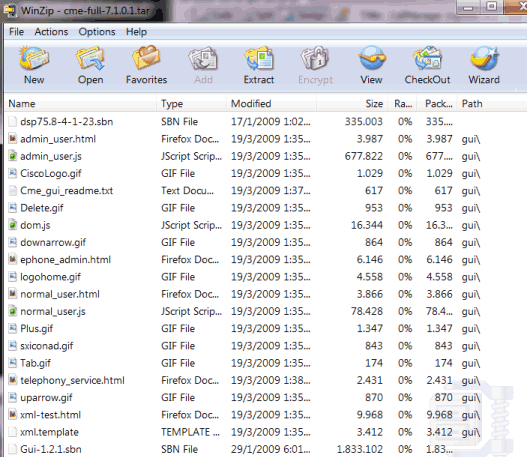
In the worst-case scenario, if there is limited space on the CallManager Express flash memory, simply extract the files with the 'gui\' path and upload them individually in the root directory of your flash memory.
Once uploaded on the router's flash, next step is to enable the router's http server, configure the authentication method, so that the router uses its local user accounts for authentication, and finally create a local user account with privilege 15 access and lower the file privilege level required for file operations. The file privilege command is necessary, otherwise we might experience telephony_service_server_get_action url:/ccme.html errors without any web page loading:
R1(config)# ip http authentication local
R1(config)# username firewall privilege 15 secret mysecret
R1(config)# file privilege 0
Alternatively, for increased security, it is possible to specify a user that will only be used for the CallManager Express GUI interface. This user will not have any other type of access to the CCME router as it is not considered a 'local account':
Enter configuration commands, one per line. End with CNTL/Z.
R1(config)# telephony-service
R1(config-telephony)# web admin system secret 0 mysecret
When entering the password or secret, type 0 reflects a non-encrypted password where as type 5 reflects an encrypted password.
We are now ready to access the Cisco CallManager Express GUI Interface using the following URL: http://10.0.0.1/ccme.html. This example assumes that the CallManager Express system is on IP address 10.0.0.1.
When typing the URL in our web browser, the system will request for a username and password. We enter the credentials accordingly and are presented with the CallManager Express homepage:
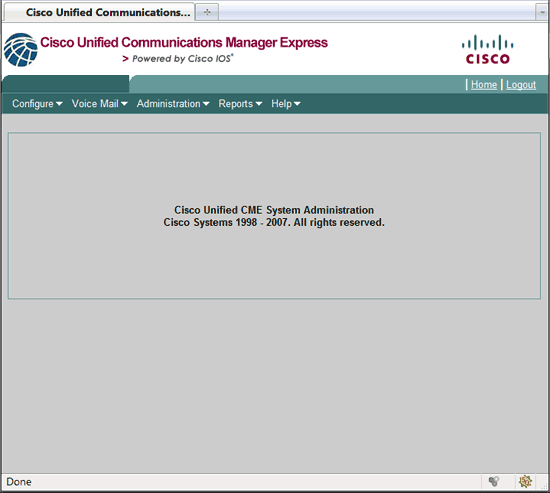
From here, we are able to configure basic system parameters, ip phone devices, create and assign extensions, receive basic call reports and much more.
The scope of this article will cover as much as the basic system parameter since the rest will be covered in future articles.
The begin setting up the basic system parameters, select 'Configure > System Parameters'. This will load the system parameter page where a number of options are available:
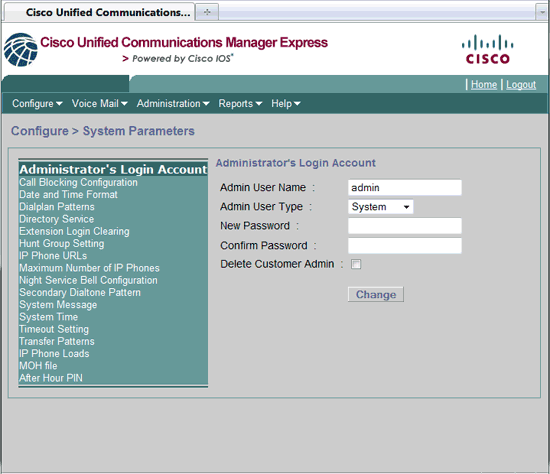
The most important parameters are outlined below:
- Administrator's Login Account - create or reset new CCME GUI accounts.
- Date and Time Format - The date/time format displayed on the IP Phones.
- IP Phone URLs - The urls IP Phones must use in order to obtain access to advanced features such as XML services or Internet.
- Max. Number of IP Phones - The maximum number of IP Phones allowed to register to our CCME system. This number cannot be more than the max. number of phones supported by the system.
- System Message - The message or company name displayed on all IP Phones.
- System Time - Allows the setting of year, month, day and time. If this option is not available, it will be necessary to enter the 'time-webedit' command under the 'Telephony-service' section using the CLI prompt.
- Timeout - The number of seconds between interdigit timeout (how long the system will wait as a user is entering a phone number, before timing out), ringing and busy timeout.
- Transfer Patterns. The pattern of destination phone number(s) allowed for transferring calls to external numbers. e.g to allow an incoming to call to be transferred to an external mobile (by placing another call), the mobile's number or pattern must be entered here, otherwise the system won't permit it.
- MOH File - Music-On-Hold file. This is the music file played when a caller is placed on-hold. The file is sampled at 8Khz, mono, 8bit and saved using .wav A/mu-Law format.
As the parameters are set, the data entered are translated into CLI commands and placed under the 'Telephony-service' section of the router's or UC's configuration.
Below is the 'Telephony-service' configuration from a working CCME system. Notice that there are a lot more commands entered than available from the web interface, however it is fairly easy to locate the ones covered with the GUI interface. In-depth analysis and configuration of the telephony-service will be covered on another article:
telephony-service
video
maximum bit-rate 300
max-ephones 30
max-dn 100
ip source-address 10.0.0.1 port 2000
auto assign 1 to 100
service phone videoCapability 1
timeouts interdigit 4
system message Firewall.cx
url services http://10.0.0.4/
network-locale GB
load 7914 S00104000100
load 7906 SCCP11.8-2-2SR1S
load 7911 SCCP11.8-2-2SR1S
load 7921 CP7921G-1.1.1
load 7931 SCCP31.8-2-2SR1S
load 7941 SCCP41.8-3-3S
load 7942 SCCP42.8-3-2S
load 7945 SCCP45.8-3-2S
load 7962 SCCP42.8-3-2S
load 7965 SCCP45.8-3-2S
load 7975 SCCP75.8-3-2S
time-zone 24
time-format 24
date-format dd-mm-yy
voicemail 88
max-conferences 8 gain -6
moh flash:north-gate.wav
multicast moh 239.10.16.4 port 2000
web admin system name admin secret 5 tLhc4.7jdhwlZp96HjC.
dn-webedit
time-webedit
transfer-system full-consult
transfer-pattern 4.
transfer-pattern 6948......
after-hours pstn-prefix 4 4
night-service code *1234
create cnf-files version-stamp Jan 01 2002 00:00:00
Once complete, Cisco CallManager Express is ready to accept new IP phones and extensions.
As a last note, we should warn that Mozzila Firefox seems to have issues handing the javascript the GUI interface uses. This is especially evident when trying to assign extensions to physical IP phone buttons.
If you are using Mozzila Firefox and stumble into problems with the GUI interface, try switching to Internet Explorer - amazingly as it might sound, no problems have been encountered with it so far!
Summary
This article covered the Cisco CallManager Express GUI interface and how it relates to different IOS versions. We examined the CCME version contained in each IOS and where to obtain the necessary files.
We also saw the information contained in each CallManager Express specification page, how to select and download the appropriate CCME GUI files and what they contain.
Closing, we showed how to install the Cisco CallManager Express GUI files onto a Cisco router or UC500 series platform and provided the necessary commands required to get the GUI working. Basic system parameters were also covered, giving a view of the available options for Cisco CallManager Express.
Enterprise-Class Cloud & Network Monitoring

Threat Traffic Analysis

Wi-Fi Key Generator
IT Infrastructure Monitoring

Follow Firewall.cx
Recommended Downloads
Cisco Password Crack
Decrypt Cisco Type-7 Passwords on the fly!
Automated Patching Solution

Firewall Analyzer