DHCP (Dynamic Host Configuration Protocol) is the protocol used by network devices (such as PCs, network printers, etc) to automatically obtain correct network parameters so they can access network and Internet resources such as IP Address, Default Gateway, Domain Name, DNS Servers and more.
A DHCP Server is considered necessary in today's networks. Devices usally found providing this service are Windows servers, routers and layer 3 switches.
This article describes how to configure basic DHCP parameters on a Cisco router, enabling it to act as a DHCP server for your network.
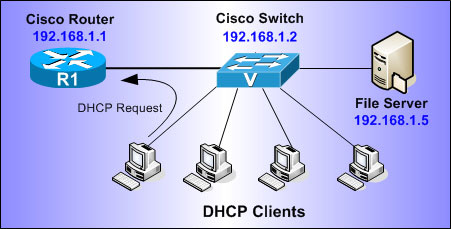
For the sake of this article, suppose we have the network shown in the following diagram, for which we would like to enable the DHCP service on our Cisco router.
The router will act as a DHCP server for the 192.168.1.0/24 network. IP Addresses already assigned to our switch (192.168.1.2) and File Server (192.168.1.5) will be excluded from the DHCP pool, to ensure they are not given out to other hosts and cause an IP address conflict.
First step is to enable the DHCP service on our router, which by default is enabled.
First step is to enable the DHCP service on our router, which by default is enabled:
Next step is to create the DHCP pool that defines the network of IP addresses that will be given out to the clients. Note that 'NET-POOL' is the name of the DHCP IP Pool we are creating:
This tells the router to issue IP addresses for the network 192.168.1.0, which translates to the range 192.168.1.1 - 192.168.1.254. We will have to exclude the IP addresses we want later on.
We now define the DHCP parameters that will be given to each client. These include the default gateway (default-router), dns servers, domain and lease period (days):
The domain-name and lease parameters are not mandatory. By default, the lease time for an IP address is one day, however we can specify any time range we need. For example, if we need to set the lease time for 4 hours and 30 minutes we would use the following command under our DHCP pool:
R1(dhcp-config)# lease 0 4 30
The above command is interpreted as follows: 0 (Zero) days, 4 hours and 30 minutes.
All we need now is to exclude the IP addresses we don't want our DHCP server giving out. Drop back to 'global configuration mode' and enter the following:
This excludes IP addresses 192.168.1.1 - 192.168.1.5 & 192.168.1.10. As you can see, there's an option to exclude a range of IP addresses or a specific address.
The above configuration is all you need to get the DHCP server running for your network. We'll provide a few more commands you can use to troubleshoot and ensure it's working correctly.
The following command will allow you to check which clients have been served by the DHCP:
Notice that IP addresses 192.168.1.5 & 192.168.1.10 have not been assigned to the clients.
In this article we've covered how to configure a Cisco router to act as a DHCP server and configure available DHCP options. We also saw how you can obtain general information about the service. There are more options available with the DHCP service, however this basic article should cover most of your network needs.
Future DHCP articles will explore advanced options and debugging for more complex networks containing VLANs and IP Telephony.




Decrypt Cisco Type-7 Passwords on the fly!